 User Guide · Rooted Web App
Web App and Wi-Fi Setup
This guide walks you through using the Rooted web app to monitor and manage your automated microgreens machines from a supported browser.
Getting started
- Go to app.rootedrobotics.com.Use Google Chrome or Microsoft Edge on a computer, or Chrome on an Android phone or tablet. Safari, Firefox, and every browser on iPhone and iPad (including Chrome) can’t add machines. See the browser warning.
- Create a new account with a safe email address.
- Set your farm name.
The Rooted web app keeps you in touch with your machines in real time, over the internet. From the web app you can:
- Add new machines to your farm using your browser
- See the status of every machine at a glance (online, offline, error)
- Monitor performance: trays processed, motor uptime, machine uptime, and more
- Review fault history for each machine
- Update machine settings (presets and variety names) remotely
What you’ll need
- A desktop or laptop computer, or an Android phone or tablet. iPhones and iPads can’t add machines.
- A browser that supports Web Bluetooth, which lets a web page connect to Bluetooth devices. The best options today are:
- Google Chrome
- Microsoft Edge
- Other browsers built on Chromium (the engine behind Chrome)
- A Wi-Fi network that your machines can join
- Your Rooted login details (provided during onboarding)
Safari and Firefox do not currently support Web Bluetooth. If you open Rooted in one of those, you’ll see a banner telling you that adding new machines won’t work. You can still view your existing machines, but you’ll need Chrome or Edge to add new ones.
iPhones and iPads can’t add machines in any browser, including Chrome. Use Google Chrome or Microsoft Edge on a computer, or Chrome on an Android phone or tablet.
Adding a machine
The first time you set up a machine, you use your browser’s Bluetooth to connect to it and put it on your Wi-Fi network. Once it’s online, everything else happens over the internet.
- Power on the machineMake sure the machine is on and nearby: within normal Bluetooth range, which is roughly the same room. The closer the better.
- Start adding the machine in RootedFrom the machines screen, click Add Machine. Rooted will ask your browser for permission to scan for nearby Bluetooth devices.
- Select your machineYour browser will pop up a device picker showing nearby Rooted machines. Pick the one you want to add. Rooted adds it to your farm.
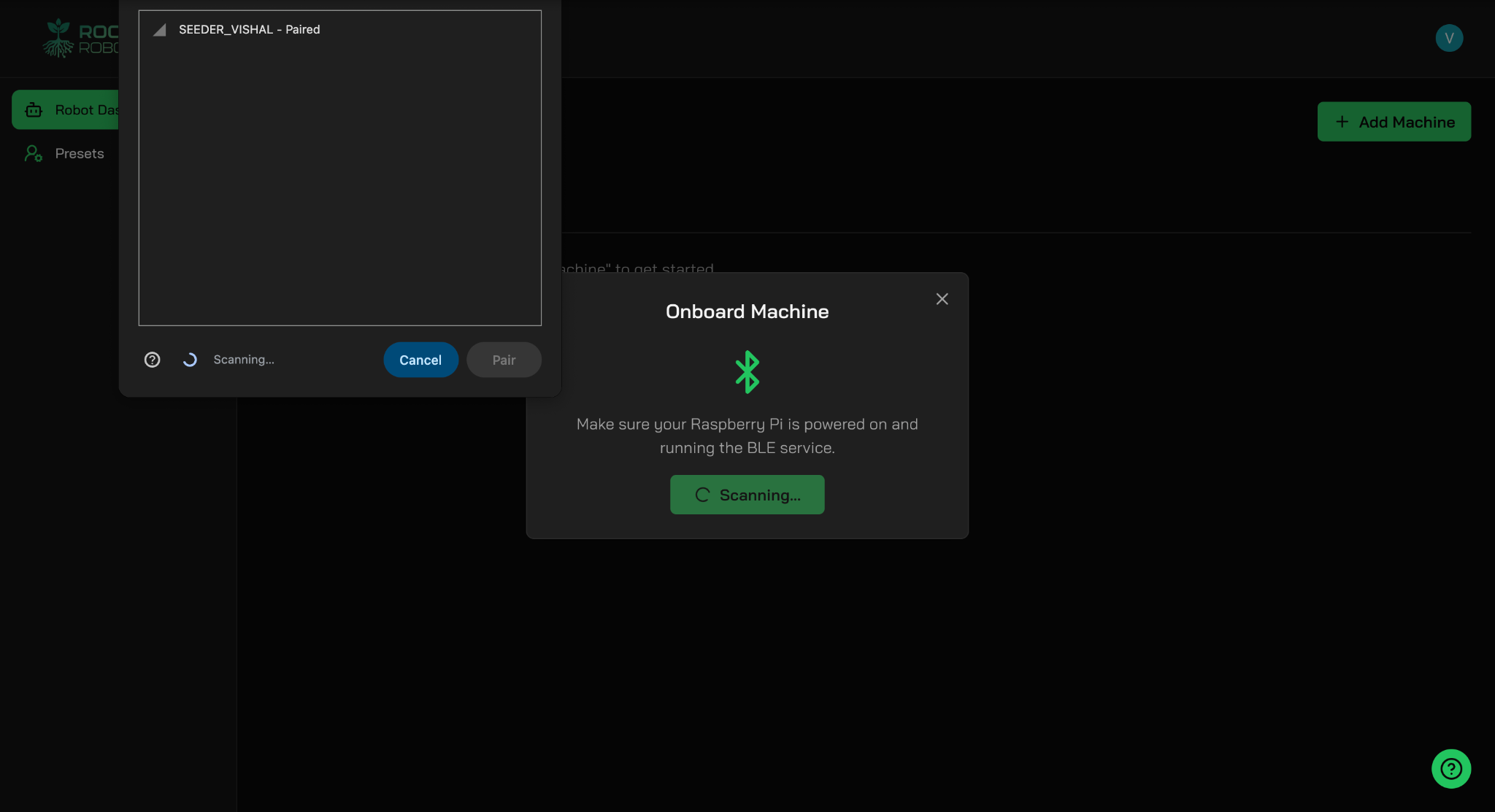
The browser’s device picker (top left) opens over the Onboard Machine window. - Send your Wi-Fi name and passwordYou’ll be asked for the Wi-Fi network name (SSID) and password you want the machine to use. Rooted sends these to the machine over Bluetooth so it can get online.
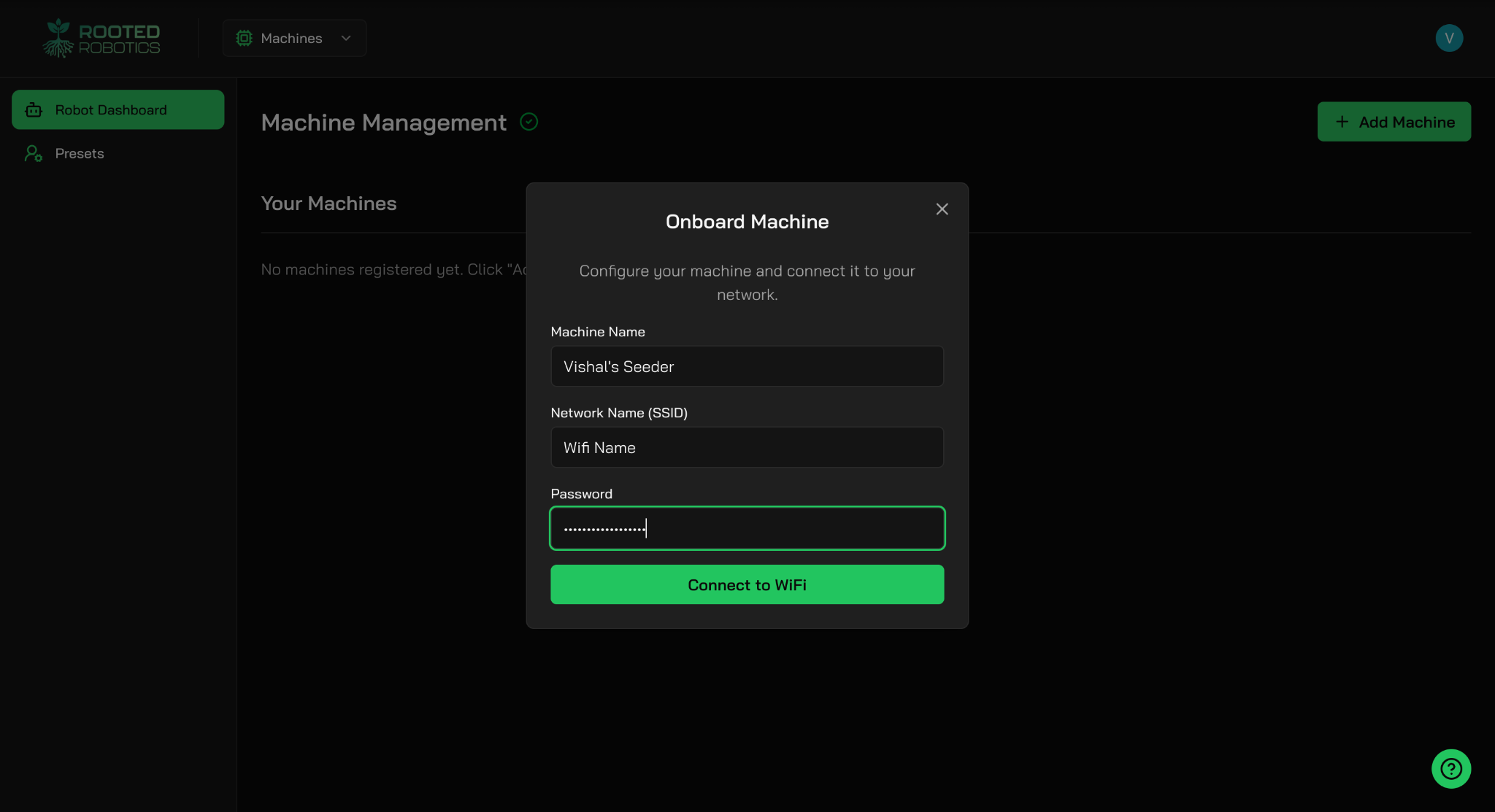
The Onboard Machine window, with the Connect to WiFi button. - Confirm it’s onlineOnce the machine joins Wi-Fi, it will appear on your dashboard with an Online status and a recent last-seen time. If it doesn’t come online within a few minutes, reload the page or see Troubleshooting.
Changing the Wi-Fi network
If you change your network settings, you can use the Configure button to send new Wi-Fi details to the machine over Bluetooth at any time.
The machine dashboard
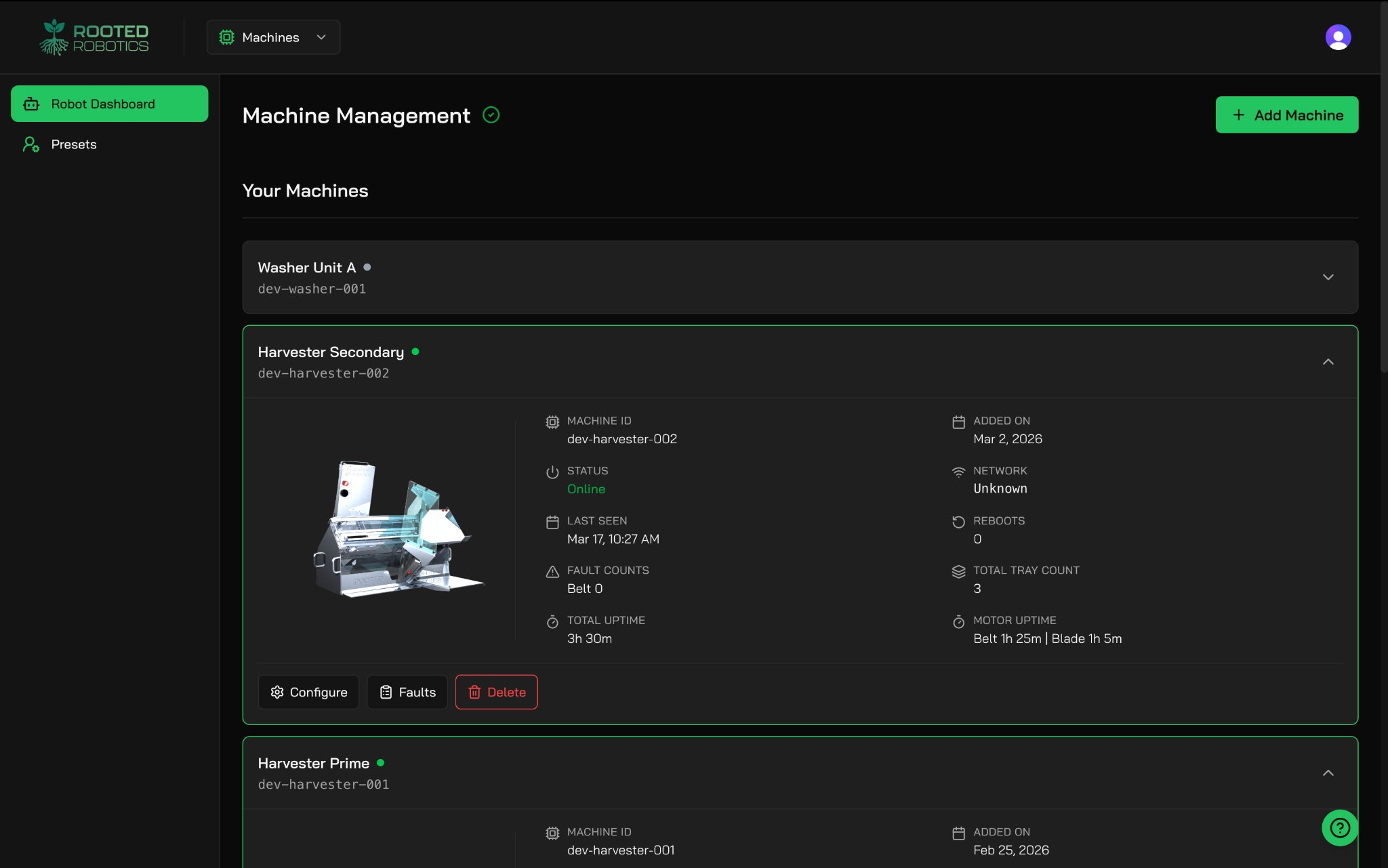
The dashboard is your home base. It shows every machine in the farm you have selected. Fault counts on the dashboard include both belt and blade faults.
Views
Each machine shows as a card on the dashboard that you can expand.
A Bluetooth status indicator at the top of the dashboard opens a short note that explains what your browser currently supports.
Status indicators
Every machine shows one of two main statuses. Machines with recent faults are flagged in the fault history.
- Online: connected and reporting normally
- Offline: not currently reachable (powered off, offline, or out of Wi-Fi range)
Each machine also shows a last-seen time so you know how fresh the information is.
Monitoring your machines
When a machine is online, it keeps sending data to Rooted. This data feeds the numbers on your dashboard and machine detail pages.
You can currently see:
- Trays processed: how many trays a seeder has run
- Machine uptime: how long the machine has been running
- Motor uptime: how long each motor has been running
- Blade faults: fault events traced to the blade
These numbers update almost in real time as your machines work.
More data (like torque readings and output per day) is planned and will appear here when it becomes available.
Analytics tab
The Analytics tab shows charts over a time range you choose: 24 hours, 7 days, 30 days or 90 days. It includes running time by motor, throughput (trays per motor-hour), fault samples, alerts and stops, and breakdowns of trays by variety and seed used by variety.
Fault history
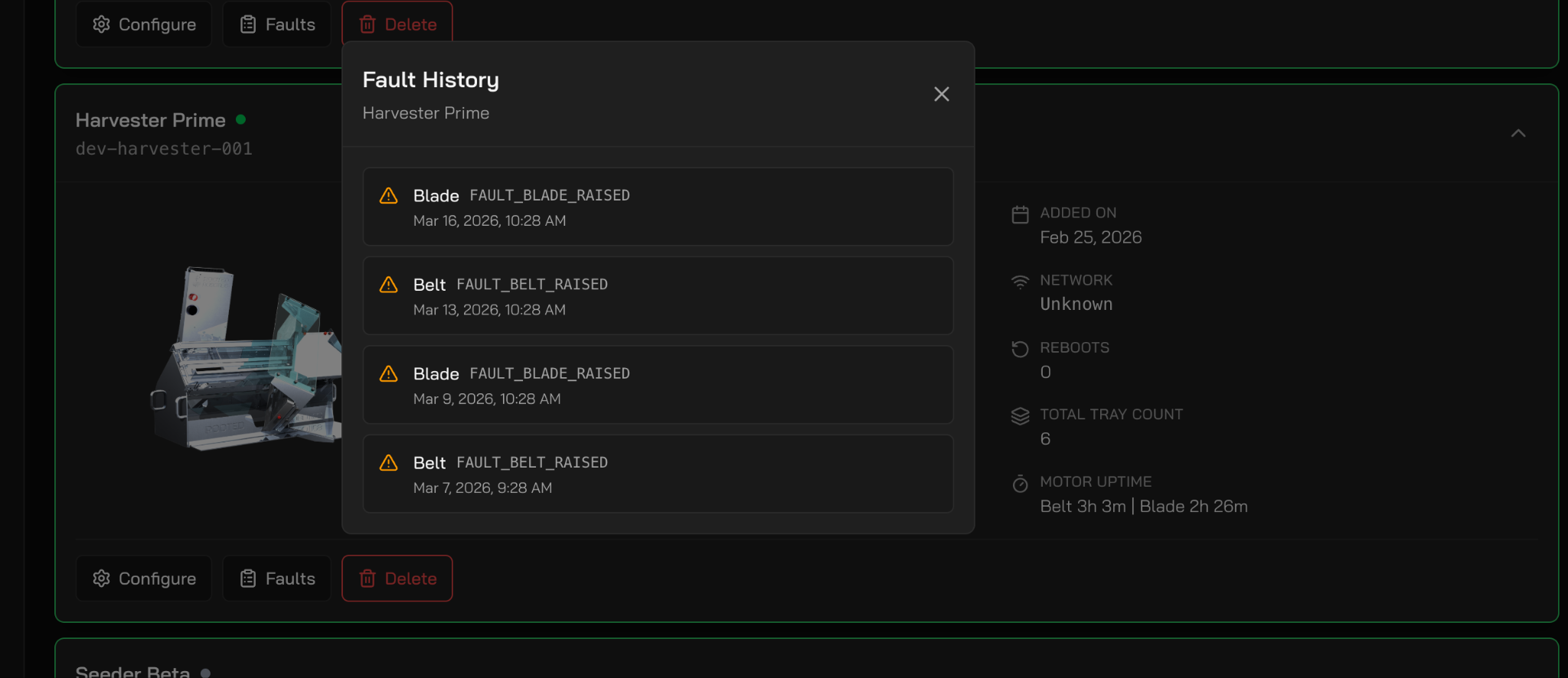
When a machine reports a fault, Rooted records it as its own event. That gives you a full history over time, not just what’s wrong right now. Both belt and blade faults are tracked and recorded.
Viewing fault history
Open the machine you’re interested in and look for the fault history view. You’ll see a list of fault events with:
- When the fault happened
- Which motor (or part of the machine) it was traced to
What to do with it
Fault history is especially useful for:
- Spotting problems that keep coming back on one machine
- Working out whether a problem is a one-off or getting worse
- Giving Rooted support concrete information when you contact us
If a fault keeps coming back or you’re not sure what it means, contact Rooted support with the machine name and the times of the faults.
Changing settings remotely
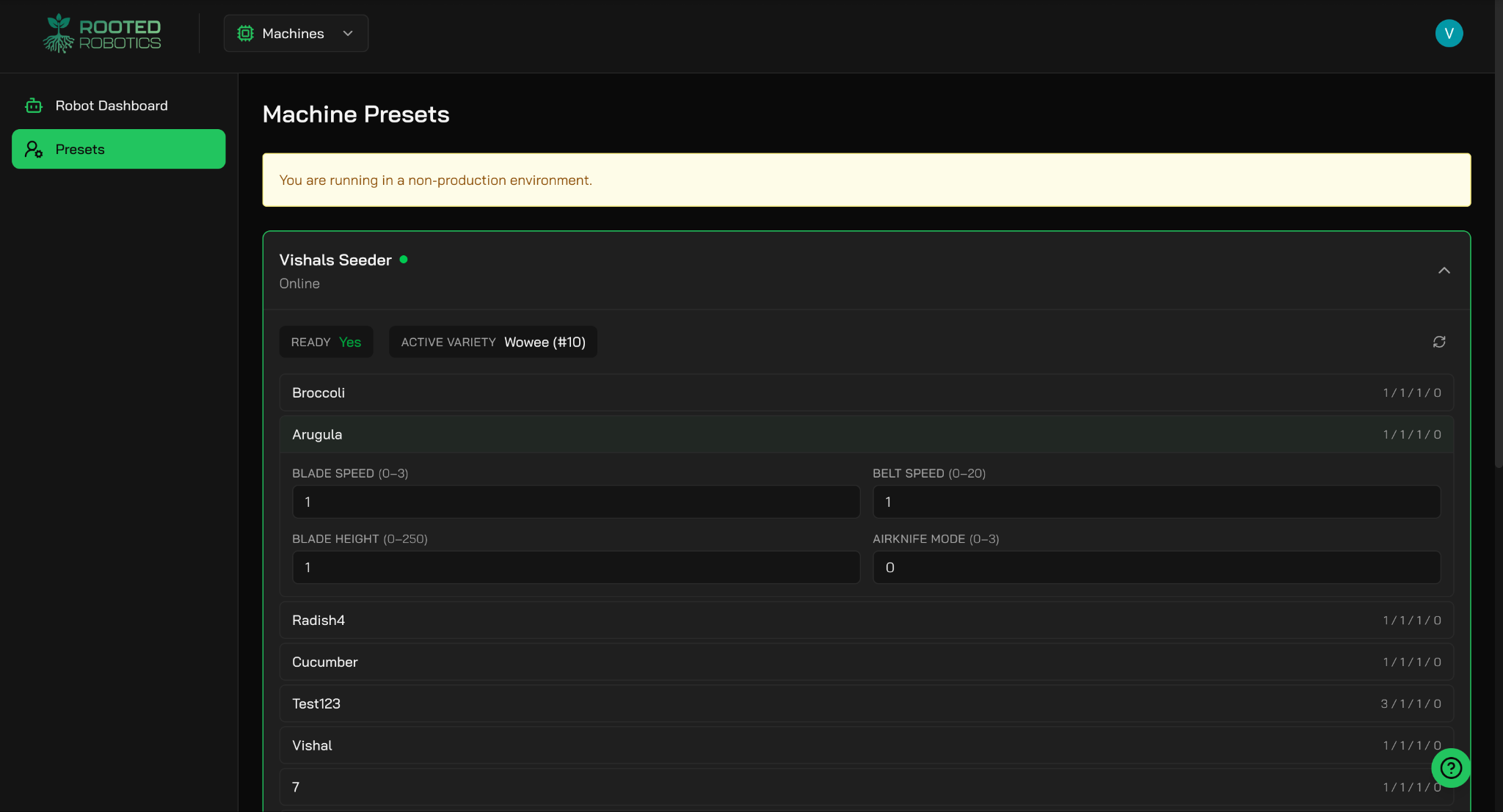
Rooted lets you view and change your machine’s settings (presets and variety names) from the web app, without touching the machine.
How it works
- Open the presets screen for the machine
- Ask for its current settingsRooted asks the machine what it’s currently set to. This happens over the internet, so the machine needs to be online.
- Wait for the replyThe app keeps checking for up to about 15 seconds while the machine replies.
- Edit what you needAdjust presets, rename a variety, and so on.
- Send the update to the machineThe new settings go to the machine over the internet and the machine applies them.
You can rename varieties right in the list (up to 12 characters) and change machine display names from this screen.
If you are using a demo (sandbox) machine, preset changes show a warning that the changes were “saved to sandbox only, never sent to hardware.”
Good to know
- The machine must be online to ask for or send settings. If it’s offline, the request will time out.
- If a request takes unusually long, cancel and try again. A short network drop can cause the reply to be missed.
- Changes take effect once the machine confirms it received them.
Documentation tab
Each farm has a Documentation tab on the machines page where you can download documents uploaded for your farm. Files are grouped by category and show their size and a description.
Part lifespan
Keep an eye on the health of your hardware with a wear percentage for each part. Each part shows a status of OK, Warning or Critical to help you keep track of part replacements.
More than one farm
If you manage more than one farm, Rooted keeps them cleanly separated:
- Each farm has its own machines, dashboard and fault history
- Data is kept fully separate for each farm. Access to several farms, with different roles, is something we are rolling out. Contact us for more information.
- Team members only see farms they’ve been given access to
We are working on letting different people use your farm with different levels of access. Please contact us if this is something you would be interested in.
Troubleshooting
- Make sure the machine is powered on
- Move your computer closer to the machine
- Refresh the page and start adding the machine again
- Make sure no one else is connected to the machine over Bluetooth right now
- Double-check the Wi-Fi name and password. Capital letters matter.
- Check that the Wi-Fi network is 2.4 GHz if that’s what your machine supports. Some machines don’t connect to 5 GHz.
- Make sure the network doesn’t need you to sign in on a web page (a captive portal). Machines can’t complete that kind of sign-in.
- Try turning the machine off and on again, then repeat the Adding a machine steps
- Check the power and the Wi-Fi network at the farm
- If other devices on the same network are working, turn the machine off and on again
- If the problem continues, contact Rooted support with the machine name
- Check that the machine shows as online on the dashboard
- Try again. Replies occasionally get lost.
- If it keeps failing, the machine may need a restart
- Check that the machine stayed online while the update was sent
- Ask for the settings again to see what it’s currently set to
- If the values still don’t match, try sending again
Getting help
If you run into something this guide doesn’t cover, click the round green help button in the bottom right corner of the page to open a support ticket, or contact us directly.